

Create a segment
The Segments tab of a list → New segment. Give it a name, then build the conditions. How many people match, and a glimpse of who they are, keep up as you build.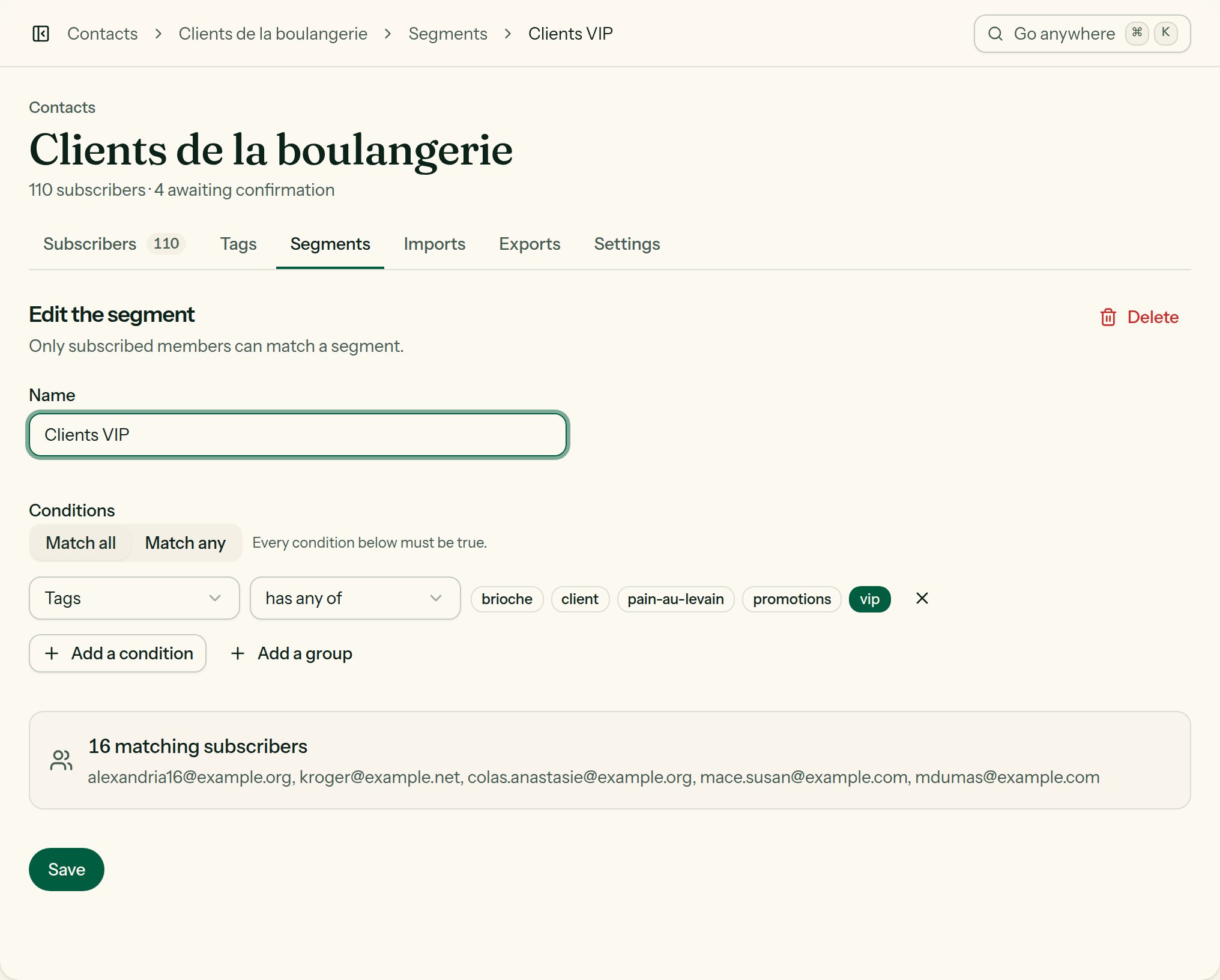
The segment builder: rules and a group, joined by AND / OR.
AND, OR and groups
A segment is a group of rules joined by Match all (every rule true) or Match any (at least one true). A group may hold a subgroup with its own all/any, two levels deep:
Tag customer AND (opened Christmas offer OR clicked a link containing /order)
A segment holds 50 rules at most.
The conditions
Only subscribers whose status is subscribed fall into a segment.Using a segment
- A campaign: in its settings, Recipients → the segment instead of Everyone on the list.
- An automation: Who may enter → the segment.
- An RSS feed: every campaign of the feed goes to the segment.
- The subscriber table: the Segment filter, then bulk actions or an export.
- An export: export the segment only.
Delete a segment
Delete, on the segment’s page, asks first. Its members stay on the list; only the segment goes, for good. The dialog says what hangs on it:- a draft campaign that targets it would go to the whole list;
- an automation that uses it would take in the whole list;
- a feed that writes to it would write to the whole list.
Examples
Win back the inactive
Win back the inactive
Engagement → did nothing in the last 90 days AND
Subscription date → is more than 30 days ago. Send them a
win-back campaign, then unsubscribe those who still do not react: your
deliverability will thank you.
This month's birthdays
This month's birthdays
Attribute
birth_date → is a date after the 1st of the month
AND is a date before the 1st of the next one. To send on the day
itself, prefer the date trigger of an
automation.Those who clicked but did not buy
Those who clicked but did not buy
Link → clicked
…/order AND Tags → has none of
customer.